Delta vs Provenance 2026 – Best Retro Game Emulator Comparison for iPhone
App Information
About This App
Do you want to play your favorite childhood games like Pokemon, Super Mario, Sonic, and PlayStation classics on your iPhone for free? Then you need to choose between Delta Emulator and Provenance Emulator – two powerful retro gaming apps that let you play Nintendo, Sega, PlayStation and more console games on iOS 18 / 17 / 16 on iPhone, iPad and iPod touch devices without jailbreak / Computer PC.
1) Delta Emulator iOS:
Delta Emulator is a premium multi-system Nintendo console emulator App, that was created and developed by popular iOS Emulator Apps Creator Riley Testut. The Same Developer of GBA4iOS 2.1, NDS4iOS and SNES4iOS emulator apps. Delta built from ground level and used all amazing tools provided in iOS SDK to bring next level gaming experience on your device.
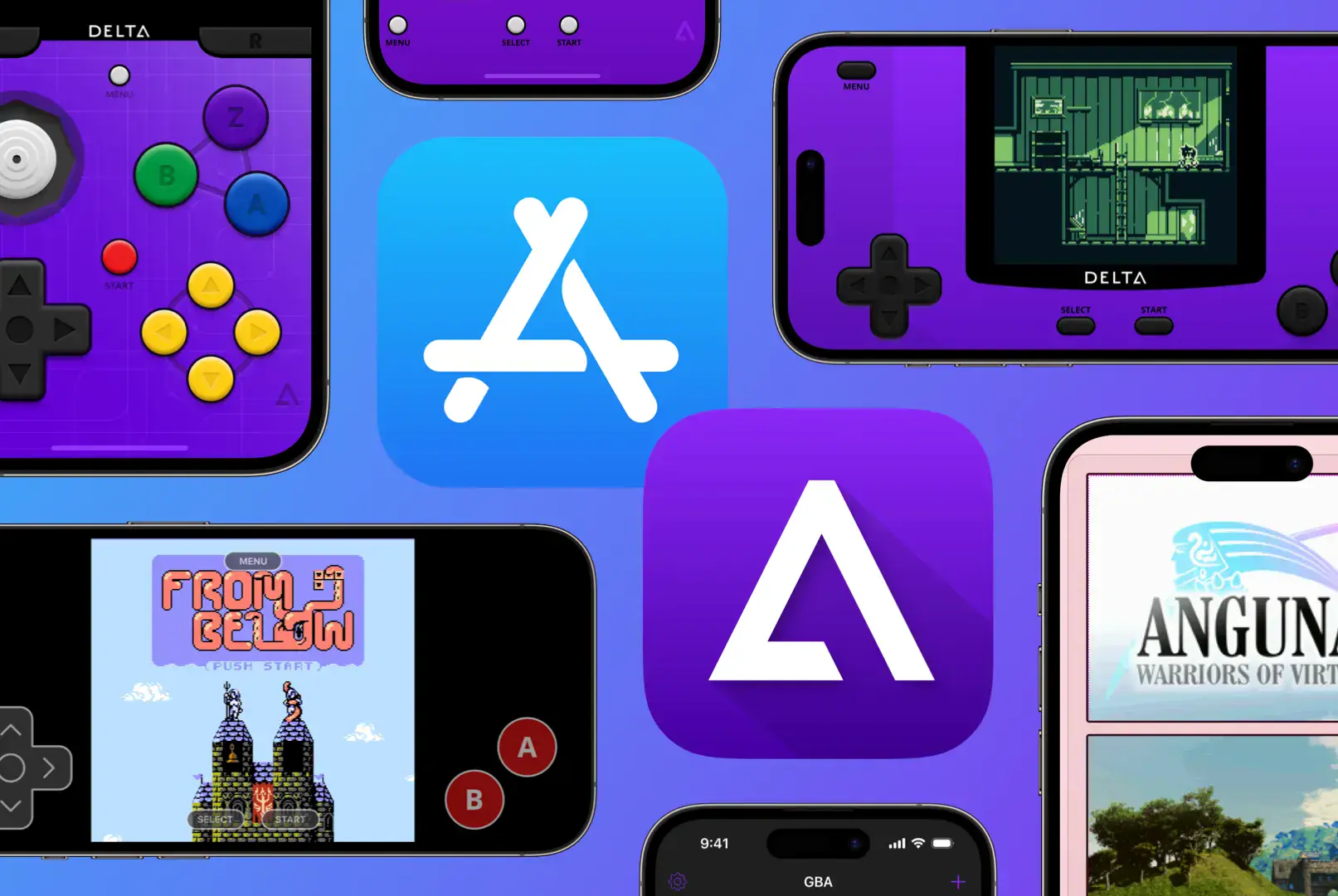
In January 2026, Delta is officially relesed on Apple App Store and you can download it directly without need of AltStore or sideloading. This is big change from previous years when you needed to sideload emulator apps. Now Apple allows emulator apps on App Store, so installation process became very simple and anyone can install Delta within few seconds.
Delta iOS feels like a truly native Apple app with clean interface, smooth animations and proper iOS design. The emulator supports Nintendo popular consoles including Game Boy, Game Boy Color, Game Boy Advance, NES, SNES, Nintendo 64 and Nintendo DS with high-emulation speed and rich graphics. Performance is excellent on modern iPhone models like iPhone 13, iPhone 14, iPhone 15 and iPhone 16 series.
Delta Multi Emulator Features 2026:
- Delta is a powerful multi-system Nintendo emulator.
- Now officially available on Apple App Store.
- It emulates Game Boy, GBA, GBC, NES, SNES, N64 and DS consoles.
- Supports online multiplayer for Nintendo DS games.
- Compatible with iPhone, iPad, Apple TV and Mac.
- Works with iOS 14 and all latest versions including iOS 18.
- Auto Save state support and manual save states.
- Delta Sync feature with Google Drive and Dropbox.
- External Game controller support (PS5, Xbox, Nintendo Switch Pro).
- Supports MFi game controllers and Bluetooth keyboards.
- Add Custom game Controller Skins easily.
- Cheat Codes support for all systems.
- Fast Forward mode to speed through games.
- Hold Button feature for auto-pressing buttons.
- 3D Touch and Haptic Touch support.
- Beautiful built-in controller skins.
- Automatic game artwork display.
- Clean Interface & Perform very fast.
- Real-time game controllers with low latency.
- No Bug Fixes and stable performance.
- Regular updates from developer.
2) Provenance Emulator:
Provenance Emulator is a open-source multi-console emulator for iPhone and iPad devices, that was created and maintained by community of developers on GitHub. Unlike Delta which focuses only on Nintendo systems, Provenance supports over 25+ different console systems including PlayStation, Sega, Atari, Neo Geo and more within single app.
In 2026, Provenance is also available on Apple App Store officially. This makes installation process much easier compared to old days when you needed to sideload using AltStore or other methods. The latest version 3.0.6 released in March 2025 includes major performance improvements especially for Nintendo 3DS games and better RetroArch core support.
Provenance iOS is perfect for hardcore retro gamers who want to play games from many different consoles. The app organizes your game library beautifully and automatically fetches box art for your ROM files. It feels like having complete retro gaming museum on your iPhone. However, the interface is not as polished as Delta and some systems require BIOS files to work properly.
Provenance Emulator Features 2026
- Provenance is a powerful multi-console emulator.
- Supports 25+ different console systems.
- Now available on Apple App Store officially.
- Compatible with iPhone, iPad and Apple TV.
- Supports PlayStation 1 games with BIOS files.
- Emulates Sega Genesis, Sega CD, Sega Master System.
- Includes Nintendo NES, SNES, N64, GB, GBC, GBA, DS.
- Experimental Nintendo 3DS support with good performance.
- Supports Atari systems and Neo Geo.
- PSP emulation in experimental stage.
- External Game controllers support (PS4, PS5, Xbox).
- Beautiful library-style game organization.
- Auto-fetch game artwork and metadata.
- iCloud Drive sync support for ROMs and saves.
- Manual save states support.
- Supports .zip and RAR archive files.
- Open-source project on GitHub.
- Apple TV support for big screen gaming.
- RetroArch cores integration.
- Custom texture support for 3DS games.
- Active community development.
- Regular updates with bug fixes.
How to Download Delta Emulator on iPhone – Official App Store
Installing Delta Emulator in 2026 is very simple because it’s officially available on Apple App Store. You don’t need AltStore, jailbreak or any complicated sideloading method anymore.
Step.1) At first, Launch the App Store application on your iPhone or iPad device.
Step.2) Now Tap on Search icon at bottom of screen and type “Delta Game Emulator” in search box.
Step.3) After that, Find the Delta app by Testut Tech developer and Tap on GET button to download.
Step.4) Similarly, Wait for download and installation process to complete automatically on your device.
Step.5) Go back to iPhone home screen and you will see Delta app icon there.
Step.6) Finally, Launch the Delta Emulator and start adding your favorite Nintendo game ROMs to play for free.
Note: Delta is completely free to download and use. However, there are optional in-app purchases like Early Adopter ($10), Community Member ($15) and Friend Zone ($30) to support the developer.
How to Install Provenance Multi Emulator App on iOS/iPadOS
Provenance Emulator installation is also simple in 2026 because it’s available on App Store officially.
Step.1) First of all, Open the App Store app on your non-jailbreak iPhone or iPad Device.
Step.2) Like wise, Tap on Search tab and search for “Provenance App” in search bar.
Step.3) Now Find the Provenance app and Tap on GET button to install on your device.
Step.4) After that, Wait few minutes for download and installation process to finish.
Step.5) Go to Settings and Trust the developer profile if needed from below path.
Go to Settings >>> then Navigate to General >>> Now go to VPN & Device Management or Profile & Device Management section >>> Find the Developer profile and Tap on it >>> After that Tap on TRUST from Pop-up Message.
Step.6) Finally, Launch the Provenance Emulator and Add your game ROMs from Files app to start playing retro games.
Note: Some console systems like PlayStation 1 and Sega CD require BIOS files to work properly. You need to import BIOS files separately through Files app.
Delta vs Provenance Comparison 2026
Here is complete comparison between Delta and Provenance emulators for iPhone to help you decide which one is best for your retro gaming needs.
| Feature | Delta Emulator | Provenance Emulator |
|---|---|---|
| Main Focus | Nintendo consoles only | 25+ Multi-console support |
| Ease of Use | Very beginner-friendly | Intermediate to advanced |
| Installation | Direct from App Store | Direct from App Store |
| Interface Design | Modern and iOS-native | Functional but dated |
| Performance | Excellent on all devices | Good but varies by system |
| Supported Systems | 7 Nintendo consoles | 25+ different consoles |
| PlayStation Support | No | Yes with BIOS |
| Sega Support | No | Yes (Genesis, CD, Master System) |
| Save States | Auto + manual + cloud sync | Manual only |
| Cloud Sync | Dropbox and Google Drive | iCloud Drive |
| Controller Support | PS5, Xbox, Nintendo Switch | PS4, PS5, Xbox |
| Online Multiplayer | Yes for DS games | No |
| Cheat Codes | Yes for all systems | Limited support |
| Fast Forward | Yes with button mapping | No |
| BIOS Required | No for most games | Yes for PS1 and Sega CD |
| Open Source | No | Yes on GitHub |
| Apple TV Support | Yes | Yes |
| Mac Support | Yes (Apple Silicon) | No |
| Development | Single developer Riley Testut | Community maintained |
| Update Frequency | Regular and consistent | Depends on community |
| Best For | Nintendo fans and beginners | Hardcore retro collectors |
Which Emulator You Should Choose in 2026
Choosing between Delta and Provenance depends on what type of games you want to play and your experience level with emulators.
Choose Delta Emulator if:
- You mainly play Nintendo games like Pokemon, Mario, Zelda and Animal Crossing.
- You want clean and easy-to-use interface without complicated setup.
- You’re new to iPhone emulators and want simple experience.
- You don’t want to deal with BIOS files and extra configuration.
- You need automatic cloud sync for your game saves.
- You want to play Nintendo DS games online with friends.
- You prefer modern iOS design with smooth animations.
- You need fast forward button for grinding in RPG games.
Choose Provenance Emulator if:
- You want to play PlayStation 1 games on your iPhone.
- You enjoy Sega Genesis, Sega CD and other Sega console games.
- You like having large game library from different consoles.
- You want to play games on Apple TV with big screen.
- You don’t mind importing BIOS files for some systems.
- You enjoy tweaking emulator settings for best performance.
- You want open-source app with community support.
- You need experimental Nintendo 3DS support.
My Recommendation: If you are beginner or casual gamer, start with Delta Emulator because it’s much easier to use and works perfectly for Nintendo games. If you are experienced retro gamer who wants PlayStation and Sega games, then install Provenance as second emulator. You can have both emulators installed on your iPhone at same time without any problem.
Delta vs Provenance Performance on iPhone 2026
Both emulators perform very well on modern iPhone models. However, there are some differences in performance depending on which console system you’re playing.
Delta Performance:
- Game Boy and Game Boy Advance run flawlessly on all devices.
- SNES and NES games have perfect emulation with zero lag.
- Nintendo 64 games run smoothly on iPhone 11 and newer models.
- Nintendo DS games work great with A15 chip and newer.
- Very optimized for battery life and doesn’t overheat device.
- Fast forward mode works perfectly without crashing.
- Online multiplayer for DS games has minimal latency.
Provenance Performance:
- PlayStation 1 games run great with correct BIOS files.
- Sega Genesis and Sega CD games are very stable.
- Nintendo 3DS support improved a lot in version 3.0.6.
- Performance varies depending on which emulator core you use.
- Some systems drain battery faster than Delta.
- Occasional stuttering on older iPhone models.
- RetroArch cores provide better compatibility but need more setup.
Frequently Asked Questions
1)Is Delta better than Provenance in 2026?
It depends on your needs. Delta is better for ease of use and Nintendo games. Provenance is better for variety with 25+ console support including PlayStation and Sega.
2)Can I install both Delta and Provenance together?
Yes, you can install both emulators on same iPhone without any conflict. Both are available on App Store officially in 2026.
3)Do these emulators work on iOS 18?
Yes, both Delta and Provenance are fully compatible with iOS 18 and work perfectly on latest iPhone models.
4)Is jailbreak required for emulators in 2026?
No, you don’t need jailbreak anymore. Both emulators are officially available on Apple App Store and can be installed directly.
5)Are emulators legal to use on iPhone?
The emulator apps themselves are legal. However, you must own original games to legally use ROM files. Downloading copyrighted games without owning them is illegal.
6)Does Provenance still need BIOS files?
Yes, some systems like PlayStation 1, Sega CD and Sega Saturn require BIOS files to work properly. Nintendo systems don’t need BIOS files.
7)Which emulator has better controller support?
Both emulators support PS4, PS5, Xbox and MFi controllers. Delta also supports Nintendo Switch Pro controllers and Joy-Cons which Provenance doesn’t support.
8)Can I play online multiplayer with these emulators?
Yes, Delta supports online multiplayer for Nintendo DS games through community WFC servers. Provenance doesn’t have online multiplayer feature.
9)Which emulator is better for Pokemon games?
Delta Emulator is perfect for Pokemon games because it supports all Nintendo consoles that have Pokemon games. It has better save state system and cloud sync for your Pokemon progress.
10) Does Delta support PlayStation or Sega games?
No, Delta only focuses on Nintendo consoles. If you want PlayStation or Sega games, you need to use Provenance emulator instead.
Thank’s for visiting GBA Emulators iOS