Delta Retro Game Emulator
App Information
About This App
Do you want to play classic Nintendo DS games like Pokemon Black, Mario Kart DS, Animal Crossing, and New Super Mario Bros on your iPhone or iPad? Delta Emulator brings authentic Nintendo DS gaming experience directly to your iOS device without jailbreak or computer.
What is Delta Emulator for iPhone?
Delta Emulator is an all-in-one multi-console emulator created by Riley Testut, the same developer behind the popular GBA4iOS emulator. And it became officially available on the Apple App Store in April 2024, making it the easiest and safest way to play Nintendo DS games on iOS devices.
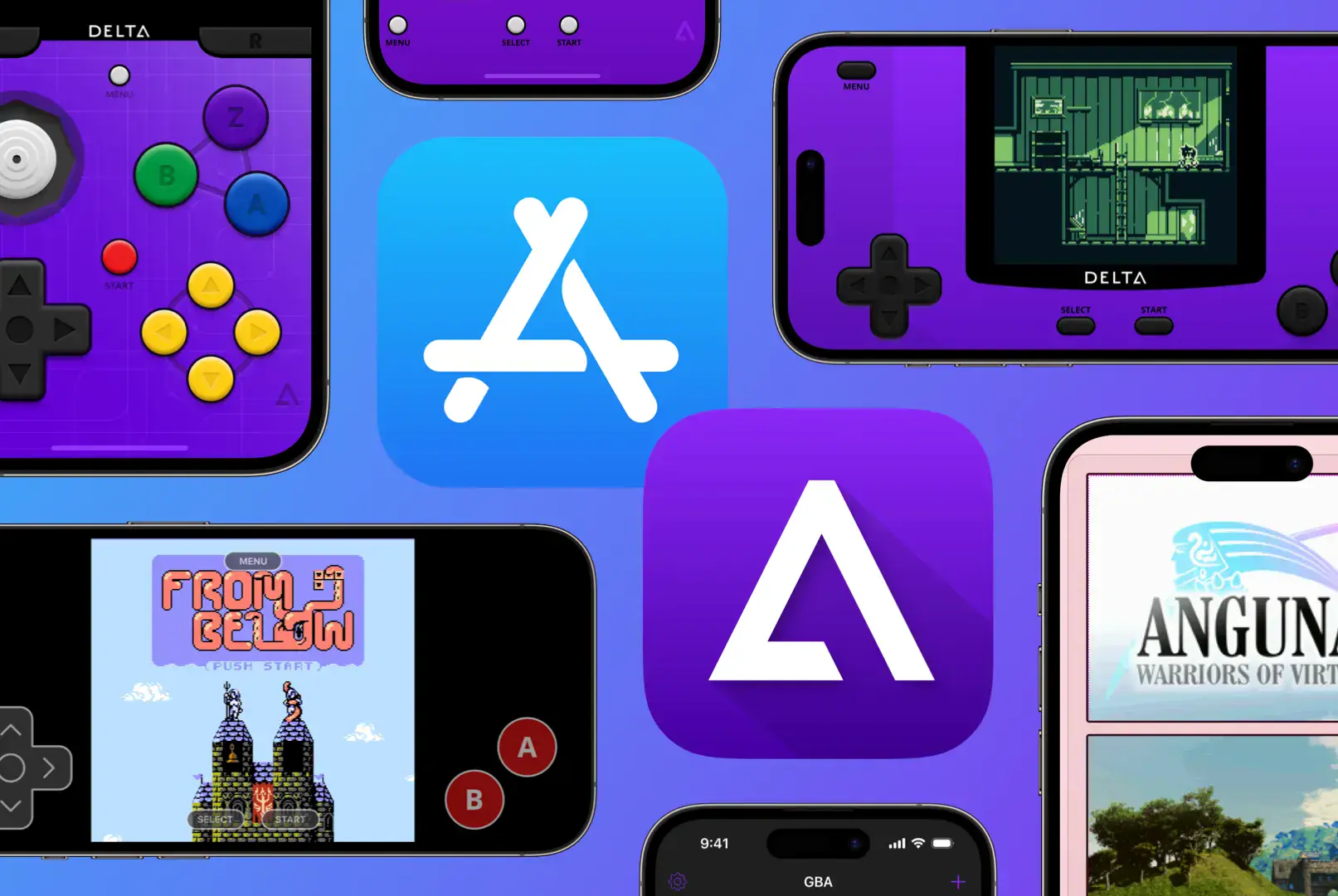
The emulator supports multiple Nintendo gaming systems including Nintendo DS, Game Boy Advance, Game Boy Color, Nintendo Entertainment System, Super Nintendo, Nintendo 64, and Sega Genesis within a single app. Delta builds upon the strengths of GBA4iOS while expanding compatibility to include more classic gaming consoles.
Delta Emulator Latest Features 2026
Nintendo DS Online Multiplayer:
Delta version 1.7 introduced online multiplayer support for Nintendo DS games. Players can now connect with friends around the world to play compatible DS games like Animal Crossing online. This major update makes Delta the first iOS emulator to support DS online gameplay through Wi-Fi connection.
DS Core Improvements:
The latest Delta updates optimized Nintendo DS emulation performance with faster loading times, improved frame rates, and better 3D rendering accuracy. DS games run smoothly on modern iPhones without lag or stuttering issues.
Cloud Sync Support:
Delta offers iCloud sync for automatic backup of game saves, save states, and cheat codes across all Apple devices. Dropbox and Google Drive sync options are also available for multi-device gameplay.
Controller Compatibility:
Full support for external controllers including Backbone One, PlayStation controllers, Xbox controllers, and Nintendo Switch Pro controllers. Controller button mapping can be customized for personalized gameplay experience.
Native iOS Integration:
Delta uses native iOS frameworks like UIKit, CloudKit, and Core Delta for seamless integration with iPhone and iPad devices. The app supports iOS Dark Mode, haptic feedback, and screen rotation.
Delta Emulator Key Features
- Multi-console support for DS, GBA, GBC, NES, SNES, N64, Genesis.
- Official Apple App Store availability.
- Nintendo DS online multiplayer via Wi-Fi.
- Save state functionality for instant game saving.
- Cheat code support for unlimited gameplay options.
- iCloud, Dropbox, and Google Drive sync.
- External controller support with custom mapping.
- Customizable controller skins and layouts.
- Fast-forward mode to skip cutscenes.
- AirPlay support for TV mirroring.
- Works on iPhone, iPad, Mac, and Apple Vision Pro.
- No jailbreak required.
- Regular updates with bug fixes.
- Free to download and use.
Install Delta Emulator on iPhone, iPad (App Store Method)
Step.1) Open the App Store app on your iPhone or iPad device.
Step.2) Tap the Search icon at the bottom and type “Delta Emulator” or “Delta Game Emulator” in the search box.
Step.3) Find Delta – Game Emulator by Riley Testut and tap the Get button.
Step.4) Authenticate with Face ID, Touch ID, or your Apple ID password to start download.
Step.5) Wait for installation to complete, then tap Open or return to your home screen.
Step.6) Launch Delta Emulator app and you’ll see the main game library screen.
Step.7) Add your legally owned Nintendo DS ROM files to start playing classic games on your iOS device.
Note: Delta is officially available on the Apple App Store, so no developer profile trust is required.
How to Install Delta Using AltStore (Alternative Method)
If you prefer sideloading or want to test beta versions, AltStore remains a reliable installation method.
Step.1) Download and install AltServer on your Windows or Mac computer from the official AltStore website.
Step.2) Install iTunes and iCloud on your computer if using Windows. Download both from Apple’s official website, not Microsoft Store.
Step.3) Connect your iPhone or iPad to your computer using a USB cable.
Step.4) Trust your device on both computer and iOS device when prompted.
Step.5) Enable Wi-Fi Sync in iTunes settings for your connected device.
Step.6) Launch AltServer on your computer and click the AltServer icon in the taskbar.
Step.7) Select “Install AltStore” and choose your connected iOS device from the list.
Step.8) Enter your Apple ID credentials when prompted. You can use a separate Apple ID just for sideloading if preferred.
Step.9) Wait for AltStore to install on your iPhone or iPad.
Step.10) On your iOS device, go to Settings >>> General >>> VPN & Device Management.
Step.11) Find your Apple ID under Developer App section and tap Trust.
Step.12) Open AltStore app on your iPhone and navigate to the Browse tab.
Step.13) Find Delta Emulator in the app list and tap Get to install it directly through AltStore.
Note: Apps signed with free Apple ID last 7 days and need refreshing through AltStore. Keep AltStore installed to refresh Delta automatically.
Add Nintendo DS BIOS Files to Delta
Nintendo DS games require BIOS files to run properly on Delta Emulator. Without these files, you’ll see a “Missing Required DS Files” error message when trying to load DS games.
Step.1) Download the required DS BIOS files from legal sources. You need three files: bios7.bin, bios9.bin, and firmware.bin.
Step.2) Save the BIOS files to your iPhone through Files app, iCloud Drive, or transfer from computer.
Step.3) Open Delta Emulator and try to launch any Nintendo DS game.
Step.4) When the “Missing Required DS Files” message appears, tap Import Files.
Step.5) Delta will show which BIOS files are needed at the bottom of the screen.
Step.6) Navigate to the location where you saved the BIOS files using the file browser.
Step.7) Select and import each required BIOS file one by one.
Step.8) Once all three BIOS files are imported, Delta will automatically enable Nintendo DS game support.
Step.9) Return to your game library and launch any DS game – it should now work properly.
Note: BIOS files only need to be imported once and work for all DS games.
How to Add ROMs / Games to Delta Emulator
Step.1) Download legally owned Nintendo DS ROM files in .nds format from your backup sources.
Step.2) Save the ROM files to your iPhone using Files app, iCloud Drive, Dropbox, or Google Drive.
Step.3) Open Delta Emulator app on your iPhone or iPad.
Step.4) Tap the + (plus) icon at the top-right corner of the screen.
Step.5) Select Import from Files option from the menu.
Step.6) Navigate to the folder where you saved your DS ROM files.
Step.7) Select the Nintendo DS game ROM file you want to add.
Step.8) Delta automatically imports the game and adds it to your Nintendo DS library with game artwork.
Step.9) Tap the game icon to launch and start playing on your iOS device.
How to Use Cheat Codes in Delta Emulator
Delta Emulator supports cheat codes for Nintendo DS games, which is useful for features like Pokemon trading that aren’t available in the emulator.
Step.1) Open Delta Emulator and launch the Nintendo DS game you want to use cheats with.
Step.2) While playing the game, tap the Menu button (three dots or lines icon).
Step.3) Select Cheats option from the menu.
Step.4) Tap the + icon to add a new cheat code.
Step.5) Enter the cheat code name and the actual code values.
Step.6) Enable the cheat by toggling the switch next to it.
Step.7) Return to gameplay and the cheat will be active immediately.
Note: Cheat codes can substitute for Pokemon trading and multiplayer features that aren’t supported in single-player emulation.
How to Connect Controller to Delta Emulator
Step.1) Open Settings app on your iPhone or iPad.
Step.2) Navigate to Bluetooth settings.
Step.3) Put your game controller into pairing mode by holding the sync button.
Step.4) Wait for the controller name to appear in available Bluetooth devices.
Step.5) Tap the controller name to pair it with your iOS device.
Step.6) Open Delta Emulator and launch any game.
Step.7) The controller should work automatically with default button mappings.
Step.8) To customize button mapping, tap the Menu button while playing.
Step.9) Select Controller settings and choose Remap Buttons.
Step.10) Follow on-screen instructions to assign each button to your preferred controls.
Compatible Controllers:
- Backbone One (Lightning and USB-C versions).
- PlayStation 5 DualSense controller.
- PlayStation 4 DualShock controller.
- Xbox Series X/S controller.
- Xbox One controller.
- Nintendo Switch Pro controller.
- MFi-certified iOS controllers.
- 8BitDo controllers.
How to Setup Delta Sync for Cloud Backup
Step.1) Open Delta Emulator app on your iPhone or iPad.
Step.2) Tap the Settings gear icon (usually in top-left or bottom-right).
Step.3) Navigate to Delta Sync section.
Step.4) Choose your preferred cloud service: iCloud, Dropbox, or Google Drive.
Step.5) If selecting iCloud, sign in with your Apple ID to enable sync.
Step.6) If selecting Dropbox or Google Drive, sign in with your account credentials.
Step.7) Enable automatic sync to backup game saves, save states, and cheat codes.
Step.8) Your game progress will now sync across all devices using the same account.
Note: Cloud sync ensures you never lose progress even if you delete the app or switch to a new iPhone.
How to Play Nintendo DS Games Online with Friends
Delta 1.7 introduced online multiplayer for compatible Nintendo DS games.
Step.1) Make sure you have Delta version 1.7 or newer installed.
Step.2) Open Delta and launch a multiplayer-compatible DS game like Animal Crossing.
Step.3) In the game menu, look for Wi-Fi or multiplayer connection options.
Step.4) Select the Nintendo DS Wi-Fi connection feature within the game.
Step.5) Ensure your iPhone is connected to a stable Wi-Fi network.
Step.6) Access the Union Room or multiplayer lobby in the game.
Step.7) Invite friends who also have Delta 1.7 with the same game.
Step.8) Connect and play together online through Delta’s multiplayer servers.
Note: Not all DS games support online multiplayer, and Pokemon trading may not function yet.
Popular Nintendo DS Games to Play on Delta
Pokemon Series:
Pokemon Black and White, Pokemon Diamond and Pearl, Pokemon HeartGold and SoulSilver, Pokemon Platinum work excellently on Delta with smooth performance.
Action & Adventure:
Mario Kart DS, New Super Mario Bros, Super Mario 64 DS, The Legend of Zelda: Phantom Hourglass, and The Legend of Zelda: Spirit Tracks run at full speed.
Simulation & Strategy:
Animal Crossing: Wild World now supports online multiplayer through Delta 1.7. Other titles like Nintendogs and Brain Age work perfectly.
RPG Games:
Final Fantasy III, Final Fantasy IV, Dragon Quest IX, and Chrono Trigger offer deep RPG experiences on mobile devices.
Fix Common Delta Emulator Issues
Missing Required DS Files Error:
This error appears when DS BIOS files are not installed. Import bios7.bin, bios9.bin, and firmware.bin files following the BIOS installation steps above.
Sound Not Working:
Open Delta settings and check audio output settings. Make sure your iPhone volume is turned up and not muted. Try toggling sound on/off in the emulator menu.
Game Won’t Load:
Verify your ROM file is in correct .nds format and not corrupted. Re-download the game ROM from your backup source. Make sure DS BIOS files are properly installed.
Controller Not Responding:
Unpair and re-pair your Bluetooth controller in iOS Settings. Check that controller has charged battery. Try remapping buttons in Delta controller settings.
App Won’t Open After 7 Days (AltStore Users):
Open AltStore on your iPhone while connected to same Wi-Fi as your computer. AltStore will automatically refresh Delta’s signing certificate. Free Apple IDs require app refreshing every 7 days.
Black Screen on macOS 15 Sequoia:
Delta 1.7 fixed the black screen issue when running on macOS 15 Sequoia. Update to the latest Delta version to resolve this problem.
Device Compatibility
Delta Emulator works on all modern iOS devices running iOS 14 and higher.
Recommended Devices:
iPhone XS and newer models
iPhone SE 2nd generation and later
iPad Air 3rd generation and newer
iPad 8th generation and later
iPad Pro all models
iPad mini 5th generation and newer
Mac computers with Apple Silicon (M1/M2/M3)
Apple Vision Pro
Older devices may experience slower performance with demanding DS games that use 3D graphics.
Is Delta Emulator Safe and Legal
Delta Emulator is completely safe to use and is officially available on the Apple App Store. The emulator has been downloaded millions of times and is trusted by the iOS gaming community.
Safety:
Installing Delta from the Official App Store poses zero risk to your iPhone or iPad. The app doesn’t contain malware, viruses, or tracking software. Delta doesn’t void your Apple warranty.
Legality:
Emulators are legal software applications. Delta itself violates no laws. ROM file legality depends on ownership – you should only use ROM files for games you legally own the original cartridge for. Downloading copyrighted ROMs from internet websites is illegal in most countries.
Thank’s for visiting GBA Emulators iOS