
BEST NDS EMULATORS FOR IOS
App Information
About This App
Do you want to play your favorite Nintendo DS games like Pokemon Platinum, Mario Kart DS, The Legend of Zelda: Phantom Hourglass and more games on your iPhone or iPad for free? Then Download & Install Best NDS Emulators that allows you to play all classic Nintendo DS games on your iOS 19 / 18 / 17 / 16 on iPhone, iPad and iPod touch, No jailbreak / Computer.
Best NDS Emulator for iOS:
NDS Emulator is a powerful application that works like translator for your iPhone or iPad Device. It pretends to be a real Nintendo DS console and lets you play all original DS games using ROM files on your iOS Device. With a good NDS emulator app, you can save your game progress anytime, use cheat codes, customize dual-screen layouts and connect Bluetooth game controllers for better gaming experience.
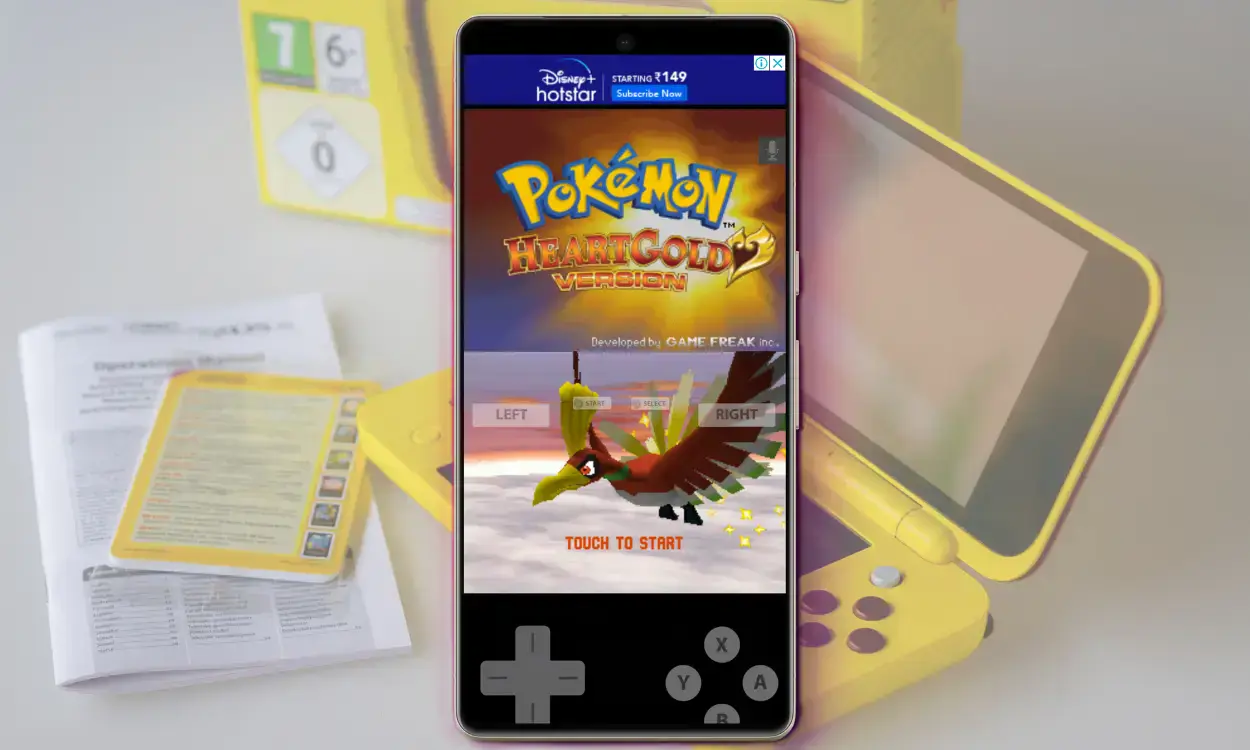
Thanks to tools like AltStore, TrollStore and Apple slowly opening up iOS in newer versions, you can now run DS games without need of jailbreak or any complicated process. In 2026, playing retro DS games on iPhone became very easy and safe method compared to 2024 and 2025. You don’t need any complicated tricks or worry about app getting removed from your device.
The best part is you can sync your game saves across multiple devices using iCloud, Dropbox or Google Drive storage. That means you can start playing Pokemon game on your iPhone and continue same game on iPad without losing progress. Most of these emulators support all iOS versions from iOS 16 to latest iOS 19 with perfect compatibility.
Is Using NDS Emulator Legal in 2026
Yes, using NDS Emulators is completely legal and Apple officially allows them on App Store since April 2024. However, downloading ROM files from internet is not legal unless you own the original game cartridge. The simple rule is you can use emulator apps freely but you should dump ROM files from games that you already purchased and own.
Remember, sharing copyrighted game files with others or downloading BIOS files that you don’t own is against the law. So always get ROM files from legal sources only. Many websites offer ROM downloads but most of them provide pirated content. The best way is creating ROM files from your own game cartridges using special dumping tools.
Best NDS Emulators for iPhone & iPad in 2026
1.Delta Emulator – #1 Choice for Nintendo DS Games
Delta Emulator is the most popular and best NDS emulator for iOS devices in 2026. This app was created and developed by famous iOS developer Riley Testut. The Same Developer of Popular GBA4iOS, NDS4iOS and SNES4iOS emulator apps. Delta has clean interface design that makes it perfect choice for beginners and school students.
The best thing about Delta is it supports multiple Nintendo console systems within single app. That means you don’t need separate apps for different consoles. Just install Delta and play games from NDS, GBA, GBC, NES, SNES and N64 consoles easily.
Delta Emulator Features:
Supports Nintendo DS, Game Boy Advance, Game Boy Color, NES, SNES and N64 consoles.
Available directly on Apple App Store for easy download in most regions.
Also available on AltStore for more installation options.
Smooth and stable NDS emulation with rich graphics.
Auto save state support for all games.
Cheat codes support for popular games.
Fast forward option to skip boring parts.
iCloud, Dropbox and Google Drive sync support.
External game controller support like Backbone, PS5, Xbox controllers.
Custom skins and dual-screen layouts.
Optimized for A16, A17 and A18 processor chips.
Regular updates with new features and bug fixes.
Completely free to use, No hidden charges.
How to Install Delta Emulator on iPhone
Step.1) First of all, Launch the App Store application on your iPhone or iPad Device.
Step.2) Now Tap on Search icon at bottom of screen and search for Delta Game Emulator in search box.
Step.3) After that, Tap on Get button next to Delta app icon to start download process.
Step.4) Wait few minutes and Delta will be installed on your iPhone home screen automatically.
Step.5) Finally, Launch the Delta Emulator app and start adding your favorite NDS game ROM files to play for free.
2.iNDS (Community Edition) – Lightweight DS Emulator
iNDS is popular Nintendo DS only emulator that focuses on simplicity and fast performance. This app was created by active community developers and maintained through GitHub. The best thing about iNDS is it runs extremely well on mid-range devices like iPhone 11, 12 and SE models.
Since iNDS focuses only on Nintendo DS console, it keeps app lightweight, fast and very easy to use. In 2026, it works especially well with TrollStore installation method for permanent app installation without need of resigning every 7 days.
iNDS Emulator Features:
Focuses only on Nintendo DS games for simplicity.
Fast-forward mode to skip boring parts.
Built-in ROM browser for easy game management.
Save states and cheat codes support.
Custom dual-screen layouts in portrait and landscape mode.
Works extremely well with TrollStore method.
Very lightweight app with small file size.
Optimized for older devices like iPhone X and XR.
Regular community updates through GitHub.
Completely free and open-source project.
Install iNDS NDS Emulator on iPhone/iPad Using AltStore
Step.1) First, you need to Download and Install AltStore on your iPhone or iPad Device. Visit altstore.io website and follow installation guide.
Step.2) After AltStore installed successfully, Launch the app on your device.
Step.3) Now Tap on Browse tab and search for iNDS in available apps list.
Step.4) Tap on Get button next to iNDS to download and install it.
Step.5) If you see “Untrusted Enterprise Developer” error, then follow below steps to fix it.
Go to Settings >>> then Navigate to General >>> Now go to VPN & Device Management or Profile & Device Management section >>> Find your Apple ID profile and Tap on it >>> After that Tap on TRUST from Pop-up Message.
Step.6) Finally, Launch iNDS and add your Pokemon game ROMs to play on iPhone for free.
3.RetroArch – Most Powerful Multi-Console Emulator
RetroArch is the most powerful emulator app for iOS that supports almost every gaming console ever made. This is perfect choice for advanced users who want maximum control over emulation settings and customization options. However, this app is not recommended for beginners because it has complicated interface with too many settings.
The best part of RetroArch iOS is it includes multiple emulation cores like DeSmuME for Nintendo DS games. That means you can choose which emulation engine works best for your games. Additionally, it offers shader filters to make old games look better with smooth graphics effects.
RetroArch Emulator Features:
Supports almost every gaming console including NDS, GBA, GBC, NES, SNES, PS1, PSP, N64 and more.
Multiple NDS emulation cores like DeSmuME for best compatibility.
Shader filters to improve graphics quality.
Netplay support to play games with friends online.
Advanced cheat engine with many options.
Controller remapping for custom button layouts.
Save states and fast forward support.
Rewind feature for difficult game sections.
Available on App Store since May 2024.
Also available through AltStore and TrollStore.
Regular updates with new cores and features.
Completely free and open-source project.
Download & Install RetroArch Multi-Emulator on iPhone/iPad
Step.1) At first, Open the App Store on your non-jailbreak iPhone or iPad Device.
Step.2) Like wise, Search for RetroArch in App Store search box.
Step.3) Now Tap on Download button to install RetroArch app on your device.
Step.4) After installation completed, Launch the app and download DeSmuME core from Core Downloader section for DS games.
Step.5) Go to Settings >>> Navigate to User Interface >>> Now change menu driver to XMB or Ozone for better interface.
Step.6) Finally, Load your NDS ROM files and start playing classic games on iPhone for free.
Lucky Emulator – Modern DS & GBA Emulator
Lucky Emulator is new modern emulator app that was released on App Store in 2025. This app focuses on Game Boy Advance and Nintendo DS games with clean interface design and smooth performance. The best thing about Lucky Emulator is it available directly on App Store, so no need of complicated installation methods.
The main feature of Lucky Emulator is its simple game import process. You can quickly add games you own via Files app, iCloud Drive or Wi-Fi transfer method. Additionally, it supports desktop widgets for quick access to your favorite games from iPhone home screen.
Lucky Emulator Features:
Supports Nintendo DS and Game Boy Advance games.
Available directly on Apple App Store for easy download.
Fast and smooth performance with low-latency input.
Simple import process via Files, iCloud or Wi-Fi transfer.
Clean on-screen controller layout that looks beautiful.
External Bluetooth controller support for better gaming.
Portrait and landscape mode support.
Sound effect adjustment options.
Desktop widgets to quickly start games.
Game acceleration fast-forward feature.
In-app purchase options for premium features.
Regular updates with bug fixes.
Install Lucky Emulator on iPhone/iPad
Step.1) First of all, Launch the App Store application on your iPhone or iPad.
Step.2) Now search for Lucky Emulator GBA DS in App Store search box.
Step.3) After that, Tap on Get button to download and install Lucky Emulator.
Step.4) Wait for installation to complete successfully.
Step.5) Finally, Launch Lucky Emulator and import your NDS game ROM files to play.
Happy Chick – Multi-Console Support Emulator
Happy Chick is powerful multi-console emulator that supports wide range of gaming systems including NDS, GBA, GBC, NES, SNES, PSP, Sega Genesis and more consoles. This app was designed for iOS users who want single emulator for all retro gaming needs.
The main advantage of Happy Chick Emulator is it includes built-in game library browser. However, you should only use ROM files that you legally own. Additionally, it offers cloud save functionality to sync game progress across different devices like iPhone and iPad.
Happy Chick Emulator Features:
Supports NDS, PSP, GBA, GBC, NES, SNES, Sega Genesis and more systems.
Multi-console support within single app.
Cloud save functionality for game progress sync.
Flexible controller configuration options.
Support for connecting external controllers.
Multiplayer support for compatible games.
Saving progress feature for all games.
Works on iOS 16 and iOS 17 versions.
Available through AltStore and BuildStore methods.
Regular updates from community developers.
PPSSPP – PSP Emulator with DS Support
PPSSPP is primarily PlayStation Portable emulator, but advanced users experiment with other console games using plugins. This app announced plans to bring emulator to App Store in 2024, and by 2026 it became available for iOS users.
The best thing about PPSSPP is its extremely fast performance and actively maintained development. If you want to play both PSP and experiment with DS games, this could be good choice for advanced users.
PPSSPP Emulator Features:
Primarily supports PlayStation Portable (PSP) games.
Extremely fast emulation speed.
Advanced graphics controls and shader options.
Save states and fast forward support.
Full controller support with customization.
Available on App Store since 2024.
Also available through AltStore method.
Regular updates with performance improvements.
Completely free and open-source project.
Provenance Emulator – Multi-System Support
Provenance iOS is another powerful multi-console emulator that supports wide range of gaming systems including NDS, GBA, GBC, Sega Genesis, Game Gear, Famicom, PSX and more consoles. This app was designed specifically for iOS and tvOS devices with focus on performance and accuracy.
The main feature of Provenance Emulator is customizable on-screen controllers. You can change controller size, opacity and position according to your preference. Additionally, it supports both portrait and landscape mode for comfortable gaming experience.
Provenance Emulator Features:
Supports NDS, GBA, GBC, Sega Genesis, Game Gear, Famicom, PSX and more systems.
Customizable on-screen controller size and opacity.
Portrait and landscape mode support.
Auto save feature for all games.
Cloud storage backup support.
Controller support with full customization.
Shows FPS counter for performance monitoring.
CRT filters for retro gaming feel.
No jailbreak required for installation.
User-friendly interface design.
Folium – Nintendo 3DS Emulator (Bonus)
Folium is specialized emulator for Nintendo 3DS games on iOS devices. While this is not NDS emulator, it can play newer 3DS games that many users want to try on iPhone. This app was released in 2024 and by 2026 it runs acceptably fast even on older iPhone models.
The main feature of Folium is JIT (Just-In-Time compilation) support that makes 3DS games run buttery smooth on iPhone. However, installation is not straightforward as you need to sideload IPA file using AltStore method.
Folium Emulator Features:
Supports Nintendo 3DS games on iPhone and iPad.
JIT support for buttery smooth performance.
Runs acceptably fast on older devices like iPhone XR.
Cloud saves functionality for game progress.
Save states support.
Joypad control support for compatible games.
Microphone integration for games that need it.
Can launch using open-source BIOS files.
Available through AltStore sideloading method.
Completely FREE to use with no hidden costs.
Newgamepad – All-In-One Classic Emulator
Newgamepad is all-in-one classic game emulator that supports multiple console systems including N64, PS1, GBA, PSP, NDS, NES, SNES, Sega Genesis and more within single app. This app was popular in 2016 and still works on some iOS devices in 2026.

The best thing about Newgamepad is it doesn’t require jailbreak and offers direct access to ROM downloads within app. However, remember you should only use games that you legally own. This emulator is good choice for users who want multiple consoles in one place.
Newgamepad Features:
Supports N64, PS1, GBA, PSP, NDS, NES, SNES, Sega Genesis consoles.
All-in-one emulator for multiple systems.
No jailbreak required for installation.
Built-in ROM browser for easy access.
Save states and cheat codes support.
Controller support for better gaming.
Free to use with no hidden charges.
Available through third-party app stores.
MyDS Emulator – Simple DS Experience
MyDS is newer Nintendo DS emulator that focuses on providing simple and straightforward gaming experience. This app offers clean interface without complicated settings that confuse beginners. The main goal of MyDS is making DS emulation accessible to everyone.
MyDS Emulator Features:
Focuses only on Nintendo DS games.
Simple and clean interface design.
Save states support for game progress.
Dual-screen layout customization.
Controller support for external devices.
Fast emulation speed on newer iPhones.
Regular updates with bug fixes.
Easy ROM file management.
NDS Emulation in 2026
Compared to 2025, here are some big improvements that came in 2026 for Nintendo DS emulation apps:
Full stability support on iOS 18, iOS 19 and iOS 20 beta versions.
Better performance on new A15, A16, A17 and A18 processor chips.
Improved Bluetooth controller connection with less lag.
App Store emulators getting regular updates with bug fixes.
Delta Emulator now available on App Store in more regions worldwide.
Cloud sync feature works more reliable than before.
Support for iPhone 13 to iPhone 16 Pro Max models.
Perfect compatibility with iPad Air, iPad Pro (M1 to M4) devices.
Works great on latest iPad Mini generation too.
Touchscreen controls that mimic the DS dual-screen layout.
Save states feature to save anytime, anywhere.
Device & iOS Compatibility:
Here’s quick breakdown based on testing and community feedback about which devices work best with NDS emulators:
iOS 18: Fully supported by all emulators listed in this guide.
iOS 19: Delta, iNDS, RetroArch, Lucky Emulator and Happy Chick confirmed working perfectly.
iOS 20 (beta): Delta and RetroArch working with minor bugs, other emulators getting updates soon.
Best Devices for NDS Emulation:
iPhone 13, iPhone 14, iPhone 15 and iPhone 16 models with Pro and Pro Max variants.
iPad Air (M1, M2, M3 and M4) processor models.
iPad Pro with M-series chips for best performance.
iPad Mini latest generation works perfectly.
Older devices like iPhone X, iPhone XR and iPhone 11 can still run DS games, but expect occasional slowdowns during intense game scenes. For best experience, use iPhone 12 or newer models with at least A14 processor chip.
Frequently Asked Questions:
Q: Do I need jailbreak to install NDS emulators?
No, you don’t need jailbreak to install NDS Emulators on iPhone. Since Apple’s policy change in April 2024, emulators are officially allowed on App Store. You can download them directly like normal apps.
Q: Are NDS emulators safe to use on iPhone?
Yes, NDS Emulators from App Store and trusted sources like AltStore are completely safe. They don’t contain any malware or virus that can harm your device or void warranty.
Q: Which is best NDS emulator for iPhone in 2026?
Delta Emulator is the best choice for most users because it has clean interface, supports multiple consoles and available on App Store. For lightweight experience, iNDS is also great option.
Q: Can I use game controllers with NDS emulators?
Yes, all major NDS Emulators support Bluetooth game controllers like Backbone, PS5 DualSense, Xbox controllers and 8BitDo controllers. Just connect controller via Bluetooth settings and start playing.
Q: Does NDS emulator work on iOS 19?
Yes, all popular NDS Emulators fully support iOS 19 and iOS 18 versions. They receive regular updates to maintain compatibility with latest iOS versions.
Q: Where can I get NDS game ROM files legally?
You can create ROM files from game cartridges that you own using special dumping hardware. Downloading ROM files from internet is illegal unless you own original game cartridge.
Q: Do I need BIOS files for NDS emulation?
No, BIOS files are not required for most NDS Emulators like Delta and iNDS. However, some emulators like Folium can use open-source BIOS files for better compatibility.
Q: Can I save game progress in NDS emulators?
Yes, all NDS Emulators support save states feature. You can save your game progress anytime and resume from same point later. Additionally, they support in-game saves like original DS console.
Q: Will NDS emulators drain my iPhone battery fast?
Modern NDS Emulators like Delta and Lucky Emulator are optimized for good battery life. However, playing games always uses more battery than normal usage. For best battery life, reduce screen brightness and close background apps.
Thank’s for visiting GBA Emulators iOS